Abusing Modern Browser Features for Phishing
Modern browsers have come a long way from rendering marked-up text to being used as a runtime for client applications. Many of the modern APIs require explicit user consent (e.g. when accessing Bluetooth, USB devices, location or local files) while others are allowed by default. As security researchers we are always interested in the worst-case – so what can malicious websites do without user consent? As it turns out – a very legitimate-looking phishing attempt!
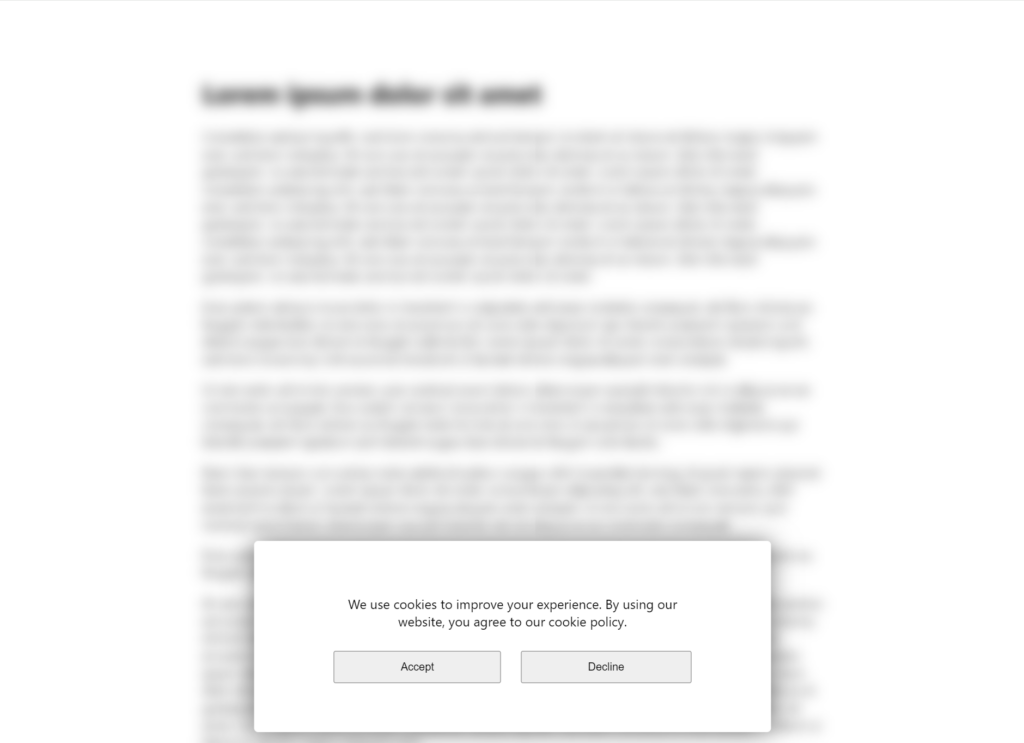
Suppose you visit a website that shows a cookie consent dialog, as is now common with many websites. After accepting or declining cookies this happens:
We see strange artifacts, we see the user interface freezing for a few seconds and then we see a Windows login screen appear. One can reasonably assume something went wrong, e.g. the GPU driver crashed and that upon recovery, Windows ended the session and shows a login screen.
In reality, this was all the malicious website’s doing. If you entered your password in this “login screen”, an attacker would have access to your Windows account (which often also means access to your M365 e-mails, VPNs, …).
But how does this happen? And why wasn’t there any warning that the browser switched to full-screen?
“Exit Fullscreen”
The first challenge is showing a lockscreen that is not confined to the website inside the browser but fills the whole screen. Modern browsers allow any website to request fullscreen through the Element.requestFullscreen API.
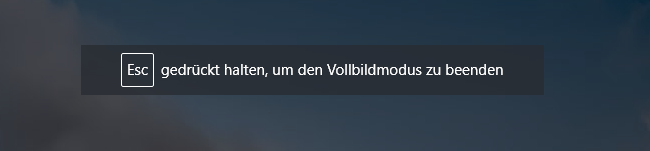
Browsers indicate that they have entered fullscreen mode by showing a message for several seconds. This also explains how to deactivate fullscreen:

The reason for incorporating such a message is that a malicious actor should not be able to emulate a browser, operating system, or any other user interface in fullscreen mode. This attack idea has been known for a long time and is utilized actively in the wild.
The WHATWG specification on the Fullscreen API has acknowledged this risk:
User agents should ensure, e.g. by means of an overlay, that the end user is aware something is displayed fullscreen. User agents should provide a means of exiting fullscreen that always works and advertise this to the user. This is to prevent a site from spoofing the end user by recreating the user agent or even operating system environment when fullscreen.
As an additional measure, browsers only allow entering fullscreen mode when it is requested as a result of a user interaction (e.g. clicking on a button). This requirement can easily be met, e.g. when the user is asked to click on a button to accept or decline cookies:
Wait what? A Website Can Run Code on a GPU?
The WebGL API allows websites rendering 3D content onto an HTML canvas element. WebGL allows websites to define small programs (“shaders”) that directly run on the GPU. It turns out that when a website executes a shader that hogs GPU resources (e.g. an infinite loop), the whole screen freezes (and sometimes a BSOD is triggered…).
This behavior could be very useful for our phishing scenario to hide the fullscreen dialog: Freeze the GPU, then enter fullscreen mode and unfreeze the GPU once the dialog disappears.
It turns out that this approach works very well! We used this WebGL fragment shader to exhaust GPU resources while the fullscreen dialog shows up:
const srcFragment = `
precision highp float;

void main(){
  float res = 0.0;
  const int loops = ##LOOPS##;
  for(int a=0; a<loops; a++){
    for(int b=0; b<loops; b++){
      res += 0.1;
      if(res > gl_FragCoord.x || res > gl_FragCoord.y){
        res = 0.0;
      }
    }
  }
  gl_FragColor = vec4(gl_FragCoord.x/400.0, res, gl_FragCoord.y/400.0, 0.3);
}`;
We have tested the code on various devices with different GPUs, consistently managing to hang the GPU or even crash GPU drivers. Often, the fullscreen message does not show while sometimes it shows briefly.
To distract the user and to further sell the idea that something crashed, we render noise on the website before fullscreen is initiated.
At this point we can take over the full screen without the user noticing. We can render a Windows login screen to get the user to enter their Windows password. A legitimate login screen would show the user’s username and their profile picture. Unless we know a lot about the target, we cannot guess this information, unless…
Google One Tap and the SOP
You may never have heard of Google One Tap but you likely have seen it. It allows a website to display this prompt to enable users to log in with their Google account:
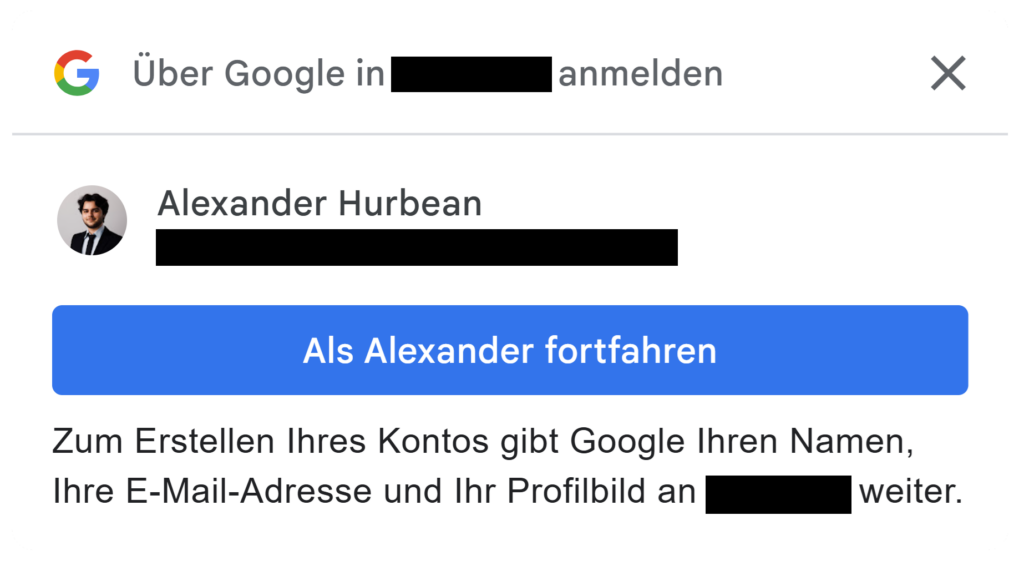
As you can see, the user’s profile picture and their username are shown in this dialog – it would be great if we could retrieve this information. To prevent this, the Same Origin Policy comes into play.
This makes sense: you don’t want any website that shows this One Tap dialog to get access to your e-mail address that is displayed inside. Only when you click “Continue as [username]” you want the website to know your identity.
Thus, Google One Tap is implemented using an iframe. The Same Origin Policy, the fundamental ruleset that restricts website’s interactions with other websites, disallows accessing the contents of the iframe. We can thus embed the iframe containing the user’s account information on a website, but can’t access it’s contents.
But we don’t need to know the user’s username and their profile picture – we just need to make sure it is embedded in the correct places on our fake login screen. If the information in the victim’s Google account matches the information in their Windows account, it will look just like the real one.
CSS and the Same Origin Policy
Here’s the idea: embed a Google One Tap dialog iframe, duplicate it (one for the username, one for the profile picture) and format the iframes so they seamlessly integrate into the lock screen:
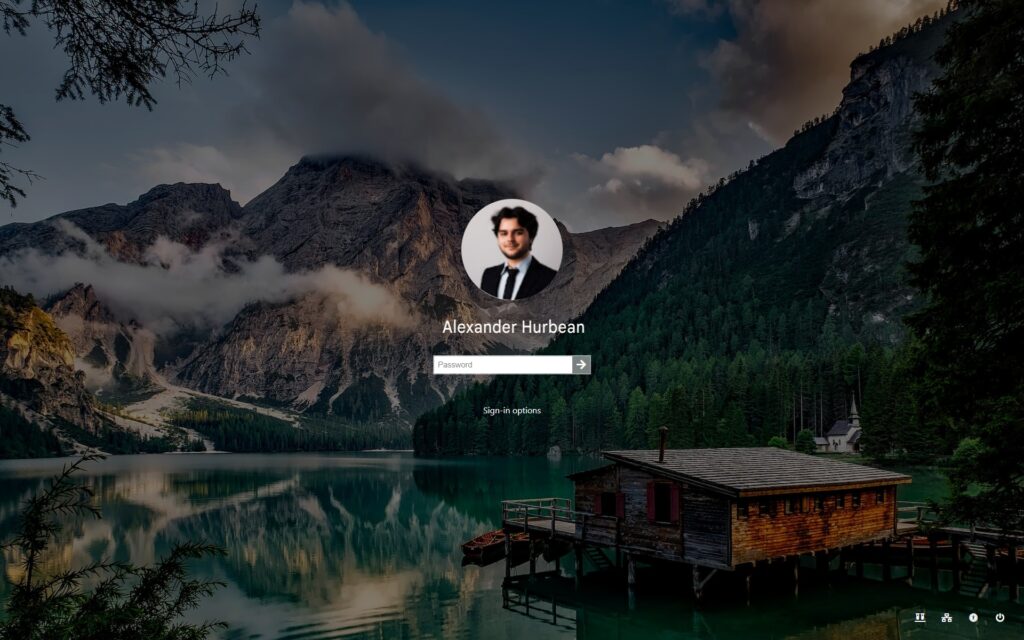
Profile image by catalyststuff on Freepik
To embed the picture, we need to position the iframe inside another element so only the profile picture is shown. Then we round the corners (border-radius) and increase it’s size (using a scale transform).
The username text is trickier, as Google One Tap shows it as grey text on a white background, while a Windows login screen shows it as a white text atop a background image. First we can adapt the text to white-on-black by using the CSS filter property (specifically the invert and brightness filters). Next, we position the text atop the background image. By using the mix-blend-mode: screen we can replace the black background with the background image.
It is to be noted here, that Google warns about doing such things, i.e. transforming or obstructing the prompt. Failing to adhere to these terms will result in termination of the connected Google project or of the connected development account. Due to this reason, it is not recommended to replicate this misuse of Google One Tap.
No Escape
From an excellent Blogpost on fullscreen abuse we learned about the Keyboard Lock API. This API allows us to lock a victim into our fullscreen login screen. The user would have to hold the Escape key for several seconds to be able to exit the fullscreen mode (Demonstration from textslashplain). Even keyboard shortcuts like Alt+Tab no longer work. As the instruction banner explaining this is hidden by blocking the GPU, the user would be fully unaware of this.
Responsible Disclosure
We have reported this issue to both the Chromium project and Mozilla in May 2024. Though the issues have been accepted, no patch timeframe, solution approach or any other piece of information that would lead us to believe this issue will be resolved at any point was provided for almost two years. We have thus decided to publish the vulnerability details.
Is There Anything That Can be Trusted?
Multiple ideas can be chained together to craft a very deceiving and convincing phishing site that may even trick experienced users. In its current state, our proof of concept is not entirely reliable, as e.g. the fullscreen banner sometimes shows briefly. This may however be fixable with more development efforts.
One approach to prevent this attack is to always press Ctrl+Alt+Delete when logging on in Windows, as this keyboard shortcut, to our knowledge, cannot be intercepted by a website. An Active Directory group policy allows requiring pressing this keyboard shortcut for every login. The hope is that if a login screen does not require Ctrl+Alt+Delete, a user may recognize as something being off.
But this attack is not limited to Windows login screens. For example an attacker could simulate a BSOD (Blue Screen / system crash) and a reboot to get a user to enter their Bitlocker PIN. Therefore, as a general recommendation, avoid passwords whenever possible. Single sign-on solutions and password managers can limit the number of places a password needs to be entered at. Smartcards or other phishing-resistant MFA technologies guard against password phishing attacks in general. Organizations can also choose to configure browsers to by default disallow fullscreen or keyboard lock access. Lastly, awareness is key to any defense against phishing attacks – if something feels off do not enter your password!
This research was conducted by Wolfgang Ettlinger and Alexander Hurbean.